


Enable product sync between Kiyoh and your webshop
Product sync registers your catalogue in Kiyoh so customers can leave product reviews. How to turn it on in WooCommerce, Shopify, Magento 2, Lightspeed and PrestaShop.
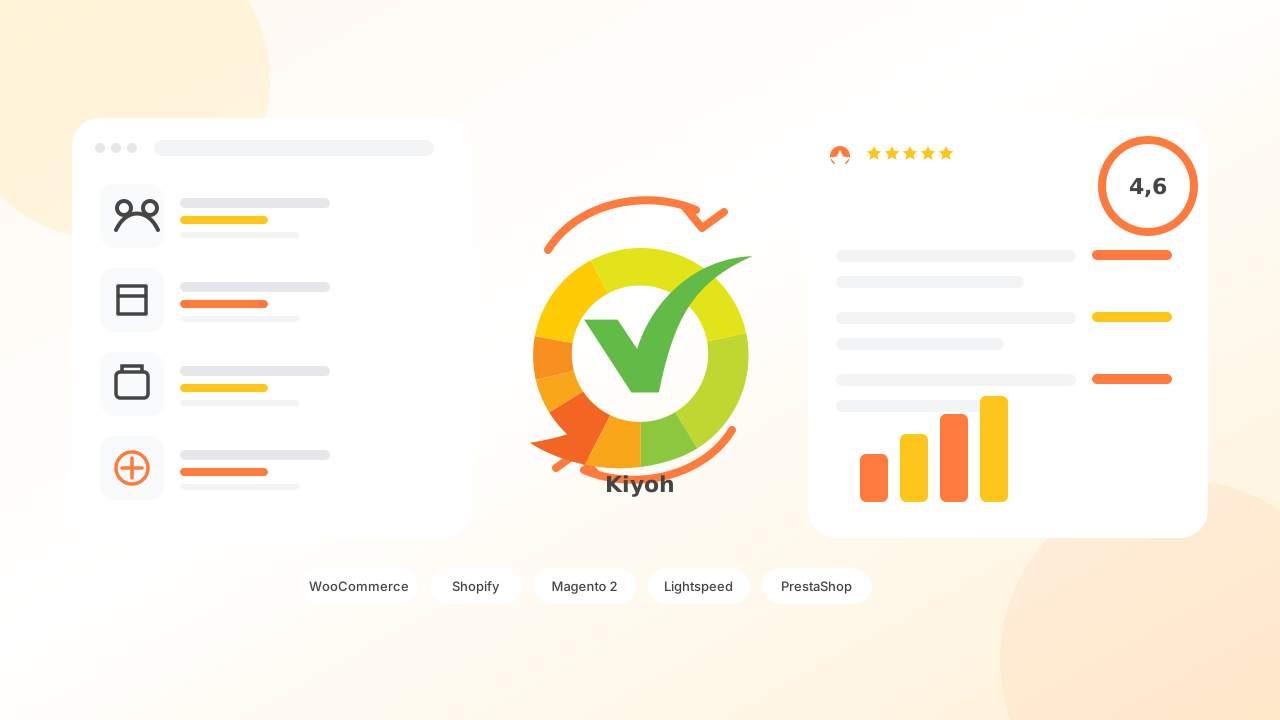
Product sync registers the products in your webshop with your Kiyoh account. The plugin sends the name, image and a product code so Kiyoh can attach a review to the right item. Without that registration, a product invitation can fail with “product not found”.
This is not a theme widget. It is catalogue registration in Kiyoh (or Klantenvertellen) so you can collect product reviews. The current official plugin guides document this for WooCommerce, Shopify, Magento 2, Lightspeed (C-Series) and PrestaShop. Other connectors — including Shopware and CCV Shop — are listed on Interfaces, but product sync is not described in those current plugin manuals.
You need a Kiyoh or Klantenvertellen account, plus your Location ID and API key (sometimes called API token). Ask your account manager, or start at register. The plugin does not send the review email itself: Kiyoh sends it after the delay you set.
Dutch version: Producten synchroniseren met Kiyoh.
First: install the right plugin
Use the platform page below. The full list of connectors is on Interfaces (Dutch overview: koppelingspartners).
- WooCommerce — WooCommerce integration · collect reviews · product reviews. In WordPress: Plugins → Add New → Upload Plugin, or search “Kiyoh Reviews”. There is also a listing at wordpress.org/plugins/kiyoh-reviews. The current guide then opens WooCommerce → Kiyoh. If you only see Settings → Kiyoh, ask your account manager for the current plugin.
- Shopify — Shopify plugin · how to install · product reviews. Install Kiyoh-Plugin from the Shopify App Store. Then open Apps → Settings.
- Magento 2 — Magento integration · Magento reviews. Ask a developer to run `composer require kiyoh/reviews`, then `setup:upgrade` (in production also `setup:di:compile` and a cache flush). Settings: Stores → Configuration → Kiyoh → Reviews Configuration. Use the store-view switcher if you run more than one store. (Download Kiyoh.zip. Requires Magento 2.4.6+ and PHP 8.2+. Product sync in this guide is for Magento 2 with `kiyoh/reviews`.)
- Lightspeed — Lightspeed integration · Lightspeed reviews. In the Lightspeed App Store, search for Kiyoh and install. There is no separate public store URL; you install from your own C-Series back office.
- PrestaShop — PrestaShop integration · PrestaShop reviews. In Modules → Module Manager → Upload a module, upload kiyoh.zip (PrestaShop 1.7–9.2, PHP 8.2+). Then configure Kiyoh Reviews.
Then: the same order in every plugin
Save credentials before you click Test or Bulk sync. Stay on the page until a bulk sync finishes.
- Enter platform (Kiyoh.com or Klantenvertellen.nl), Location ID and API key. Save and test the connection.
- Turn product sync / auto-sync on. Add exclusions if needed (gift cards, samples).
- Run a one-time bulk sync of your existing catalogue.
- Then set up invitations (status, delay, shop and/or product reviews).
Platform-specific buttons and rules are below.
WooCommerce
Open WooCommerce → Kiyoh. In this order:
- General tab: enable the plugin, choose the platform, enter Location ID and API key, save, click Test API Connection.
- Product Sync tab: save, then click Sync All Products.
- Configure the Reviews tab (stars in your shop) and Invitations after that.
Every product needs a SKU and a name. A product without a SKU is not synced. Auto-sync is on by default when you create or update a product. You can exclude product types and SKUs. Brand, barcode/GTIN and MPN are sent when they already exist on the product; the featured image is used.
Shopify
In the app under Settings:
- Enter platform, Location ID and API token. Click Test Connection, then Save Settings.
- Set up product sync, save, click Bulk Sync All Products.
- Turn Enable Kiyoh integration on last (that switch is for invitations). Product sync has its own checkbox and can run while invitations are off.
Shopify registers products by Shopify product ID; the SKU is extra information. Bulk sync skips products without an image. Add an image first.
This plugin does not place stars on your Shopify theme. You manage reviews in the Kiyoh dashboard.
Magento 2
Under Stores → Configuration → Kiyoh → Reviews Configuration:
- Fill API Settings (Enable Kiyoh Reviews, server, Location ID, API token) and Save Config. Magento checks the credentials on save.
- Under Product Synchronization, set Enable Product Sync to Yes (it defaults to No). Leave auto-sync on, or exclude types/SKUs. Save, then click Bulk Product Sync for the store view in the switcher.
- After the first successful bulk sync, set Initial Sync Completed to Yes. Otherwise a full-catalogue sync keeps running every night.
Every product needs a SKU and a name. If there is no image, a placeholder is sent. Deleting a product in Magento does not remove it from Kiyoh; remove it in the dashboard. For configurable products, invitations use the variant SKU the customer bought.
Lightspeed (C-Series)
- Fill Kiyoh Credentials, Save Settings, then Test Connection.
- Optionally add Product Exclusions (SKU or product ID).
- Turn on Plugin Enabled and Auto-sync products on create/update, then save.
- Click Bulk Sync Products once.
Bulk sync skips products without an image or a product page URL. Matching uses the default variant SKU; if there is no SKU, the Lightspeed product ID is used. Bulk sync still works when the plugin is off; auto-sync only runs when the plugin is on.
PrestaShop
- Fill General Settings, save, click Test Connection.
- Under Product Sync Settings, save and run Bulk Sync All Products. The result shows how many synced, were skipped or failed.
- Then set Review Invitation Settings (select at least one order status) and language settings.
The module stays inactive until Enable Module is on and Location ID, API key and platform are filled. Every product needs a name, image and product URL. Matching uses the PrestaShop reference (SKU); if there is no reference, the product ID is used. Bulk sync includes active products only. Missing images are the most common failure.
Check that it worked
- WooCommerce: auto-sync on, SKU + name present, type/SKU not excluded.
- Shopify: auto-sync on, product has an image, SKU not excluded.
- Magento: Kiyoh Reviews and Product Sync enabled, SKU + name, correct store view for bulk sync.
- Lightspeed: plugin + auto-sync on, image + URL, code not excluded; or run bulk sync once.
- PrestaShop: module enabled, auto-sync on, product active with name, URL and image.
Deleted shop products often remain in Kiyoh. Remove them there if needed.
Next: request product reviews
Set the invitation type to shop + product, or product only. Plugins often try to sync missing order products before the invite, but a catalogue that is already in Kiyoh avoids errors. Display and Google Shopping: product reviews.
Need help? Email [email protected] or use contact. Include your shop URL and Location ID — never the API key.
Plugins with product sync
The chips in the image above are small. Use these buttons to open each plugin page — that is where you install.



Ready to start collecting reviews?
Discover how Kiyoh can help your webshop grow.